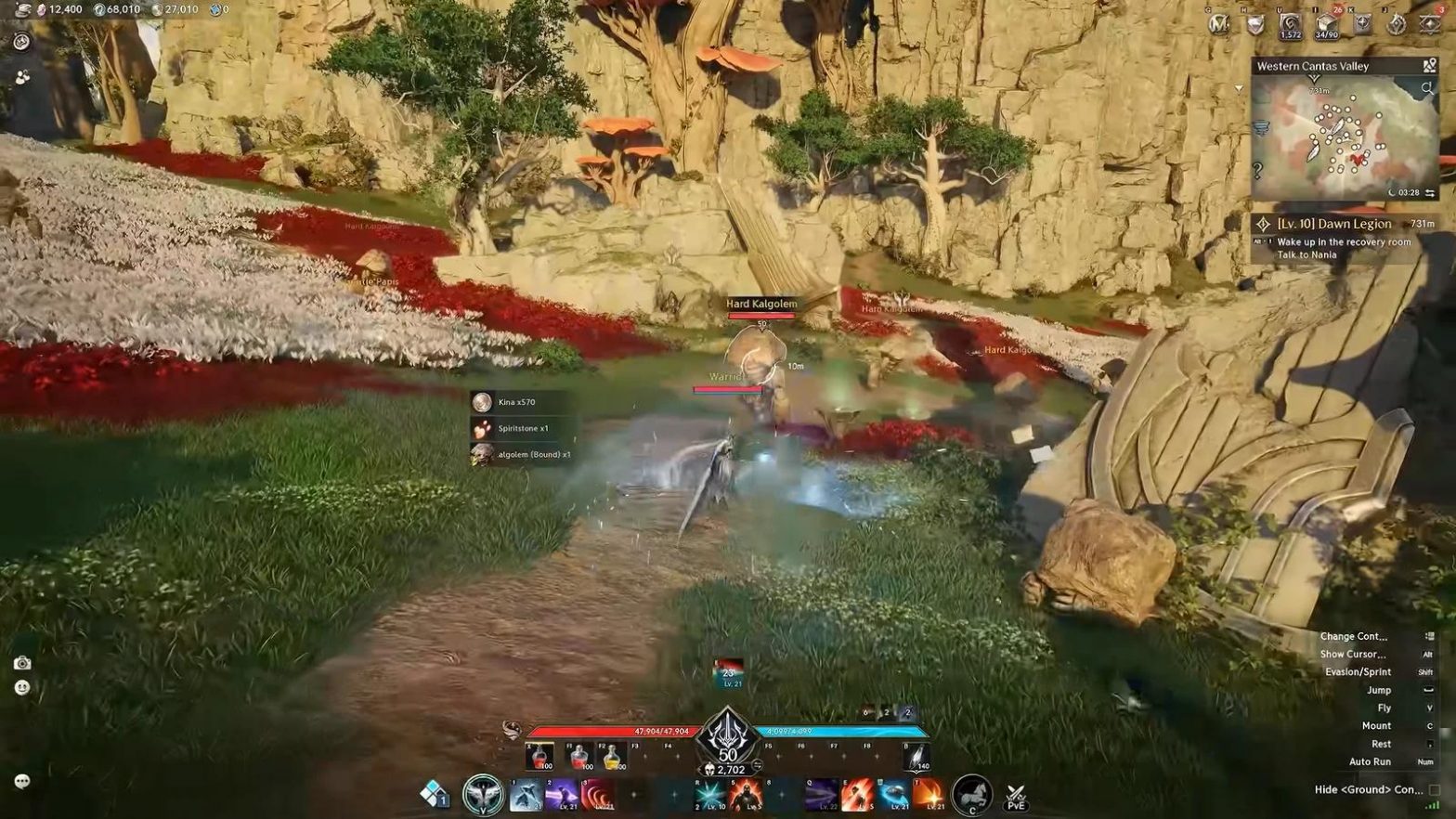

Resource management is one of the most important aspects of progression in Stormshot: Isle of Adventure. Upgrading buildings, researching technologies, training troops, and expanding your Stronghold all require a steady supply of materials. Without a reliable economic strategy, players can quickly find themselves waiting for resources instead of making meaningful progress.
The key to maintaining a strong economy is combining passive production, active gathering, and carefully planned research. Rather than relying on a single source, players should develop several resource channels that support their long-term growth.
Upgrade Resource Buildings Before You Run Out
Resource buildings provide a consistent supply of essential materials over time. Stormshot features four primary resources: Food, Magic Crystals, Stone, and Silver. Each has dedicated production buildings within your estate.
A common mistake is focusing almost entirely on military buildings while neglecting economic development. Although a powerful army is useful, insufficient resource production can slow down almost every other aspect of progression.
To avoid this problem:
Upgrade resource buildings regularly to improve hourly production.
Collect stored resources before their production capacity reaches its limit.
Maintain a balanced supply instead of concentrating on only one resource.
Prioritize buildings that support your next Stronghold upgrade.
Regular collection is particularly important because production stops providing additional resources once the building reaches its storage capacity.
Prioritize Economic Research at the Academy
The Academy is another essential part of a successful resource strategy. Its research options can improve production efficiency, gathering speed, and overall development.
For players who are still building their economic foundation, research related to resource production and resource collection should receive particular attention.
Rather than investing all available research resources into combat upgrades immediately, consider developing your economy first. Better production and gathering efficiency can reduce the time required to collect materials for future construction projects.
Keep the Academy occupied whenever possible. Even relatively small research improvements can provide meaningful benefits when accumulated over several weeks.
Gather Resources From the World Map
Passive production alone may not be enough when upgrading high-level buildings. Active gathering through resource locations on the world map provides another important source of materials.
To gather efficiently, open the world map and look for available resource grids. Select a location that contains the resource you currently need, then send an appropriate troop march.

Before dispatching troops, consider two factors:
Gathering Time: Nearby resource locations generally require less travel time, allowing your troops to return sooner.
Troop Load Capacity: The amount of resources your march can carry determines how much value you receive from each gathering trip. A larger carrying capacity can make longer gathering sessions more productive.
Avoid sending more troops than necessary when the gathering requirement is relatively small. Maintaining enough available forces for other activities helps keep your overall progression flexible.
Use Inventory Resources Strategically
Stormshot provides various resource items through quests, exploration, battles, and event rewards. These items can be stored in your inventory and opened when additional materials are needed.
Instead of immediately claiming every resource item, consider saving some for important upgrades or limited-time progression events.
For example, if your Stronghold is approaching a major upgrade requirement, you can calculate the resource shortage first and open only enough inventory items to cover the difference.
This approach gives you greater control over your available resources and reduces unnecessary spending.
Balance Resource Production With Military Development
A strong economy should support military growth rather than replace it. Troops are needed to defeat PvE threats, gather resources, defend your estate, and participate in alliance activities.
However, training large numbers of troops without sufficient economic support can create additional pressure on your resource reserves.
A more sustainable progression strategy is to alternate between economic and military improvements:
Upgrade your Stronghold and important production buildings.
Research technologies that improve resource efficiency.
Gather additional materials from world map locations.
Train and upgrade troops when your resources allow.
Keep enough supplies available for upcoming construction and research.
Building a powerful Stronghold in Stormshot takes time, especially when developing heroes, upgrading troops, and unlocking advanced features. Players who want to explore different stages of progression can check out Cheap Stormshot Isle of Adventure Accounts on z2u.com. Different listings may provide access to established accounts with developed heroes, upgraded buildings, and varying levels of in-game resources. Comparing available options allows players to choose an account that better suits their preferred strategy, whether they enjoy alliance battles, PvE challenges, or Stronghold development. Always check the account details and seller information before making a purchase.
Final Thoughts
Efficient resource management in Stormshot is about maintaining a consistent balance between production, gathering, research, and military development. Players who invest in their economy early can avoid many of the resource shortages that slow down Stronghold progression later.
By upgrading production buildings, keeping the Academy active, using world map gathering efficiently, and managing inventory resources carefully, you can create a more reliable development strategy and build a stronger estate over time.